Clayworks products include the app and plugin formats listed on their product pages. Harmonimo includes AU, VST, and standalone builds. Kodotone includes standalone, AUv2, and VST3 plugin targets.
macOS Extract the ZIP, place the standalone app in your Applications folder, place Audio Unit plug-ins in /Library/Audio/Plug-Ins/Components/, and place VST or VST3 plug-ins in /Library/Audio/Plug-Ins/VST3/.
Windows Run the installer and follow the prompts for the product you are installing.
Read the full product guides when you want the controls, workflows, and settings explained in one place.
Harmonimo guide for chords, performance modes, MIDI mapping, and settings
Kodotone guide for lanes, grooves, samples, MIDI, and settings
Think of Harmonimo as the harmony source, not the final instrument sound. Harmonimo generates MIDI chords and melodies, then another instrument makes the piano, pad, lead, bass, sample, or hardware synth sound.
The usual setup is two tracks: one track has Harmonimo, and the other track has the instrument you want to hear. The instrument track listens to Harmonimo's MIDI output, then turns those notes into sound.
Ableton Live
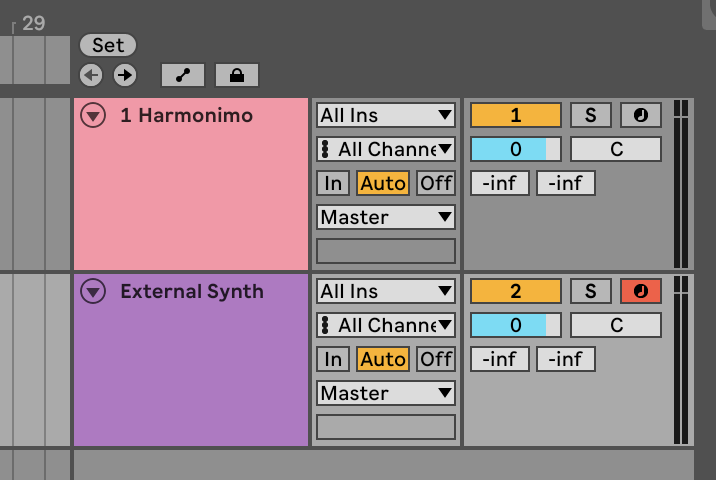
Create one MIDI track with Harmonimo and a second MIDI track with your synth, sampler, or other sound source. Arm or monitor the instrument track so it can receive incoming MIDI.
Keep Harmonimo on its own track, then arm or monitor the track that contains the sound you want to play.
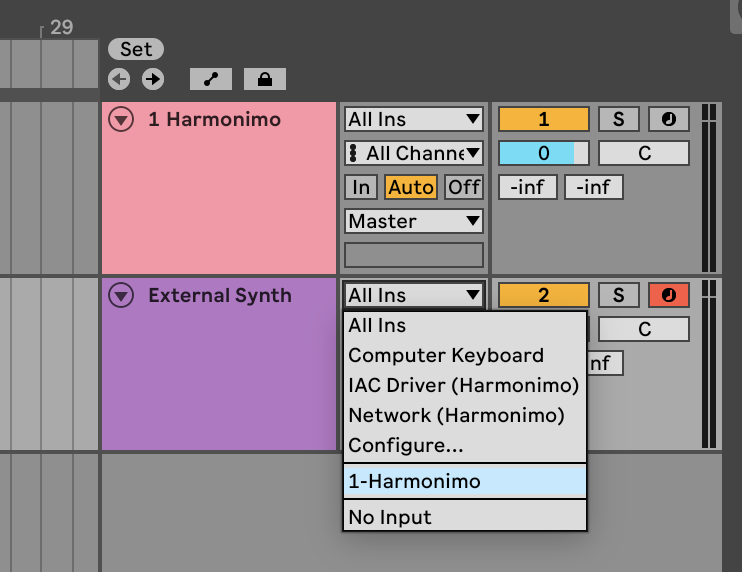
On the instrument track, open the first MIDI input chooser and change All Ins to the Harmonimo track.
Select the Harmonimo track as the MIDI source for your instrument track.
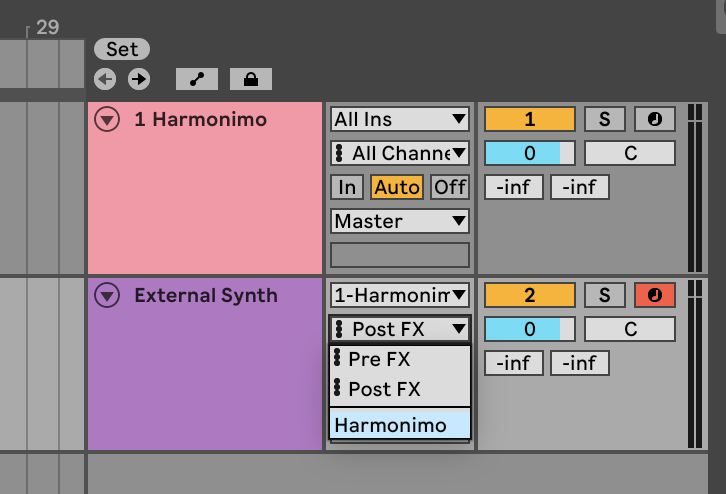
Then open the second chooser and select Harmonimo if Live shows it. If your setup only shows Pre FX and Post FX, choose Post FX so the instrument receives the generated MIDI coming out of Harmonimo.
Use the Harmonimo device output when available, or Post FX when that is the route your Live setup exposes.
Logic Pro
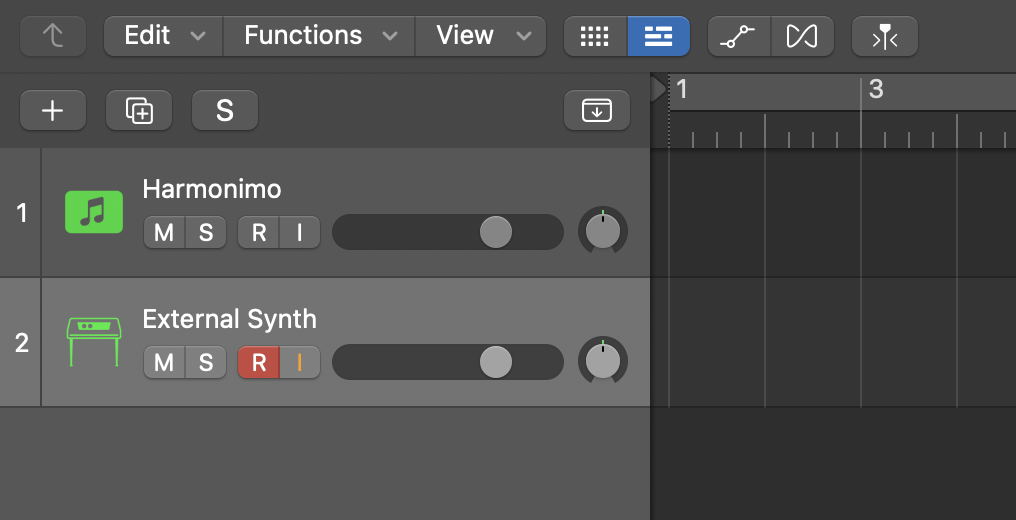
Create two software instrument tracks: one with Harmonimo and one with the synth or sampler you want Harmonimo to drive. Arm the receiving instrument track.
Record-arm the track that contains the sound source, not just the Harmonimo track.
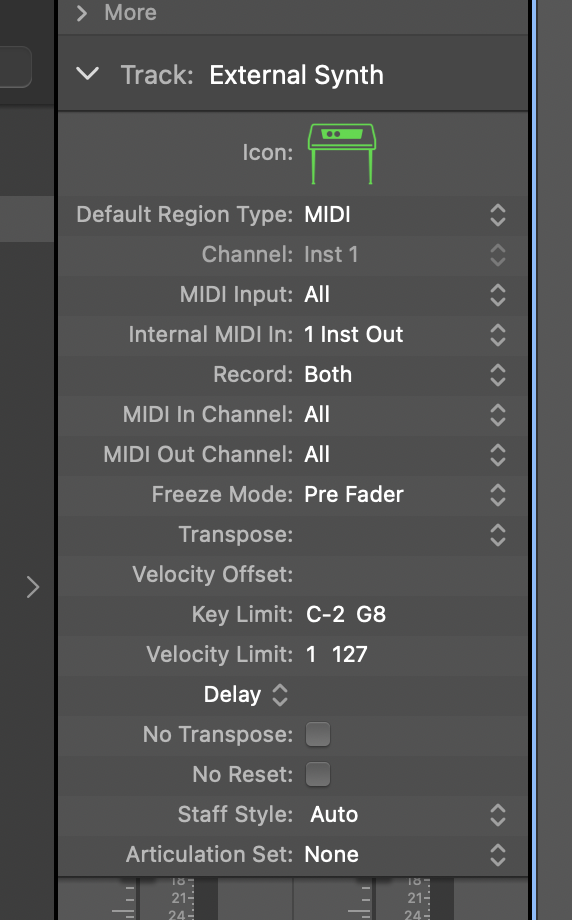
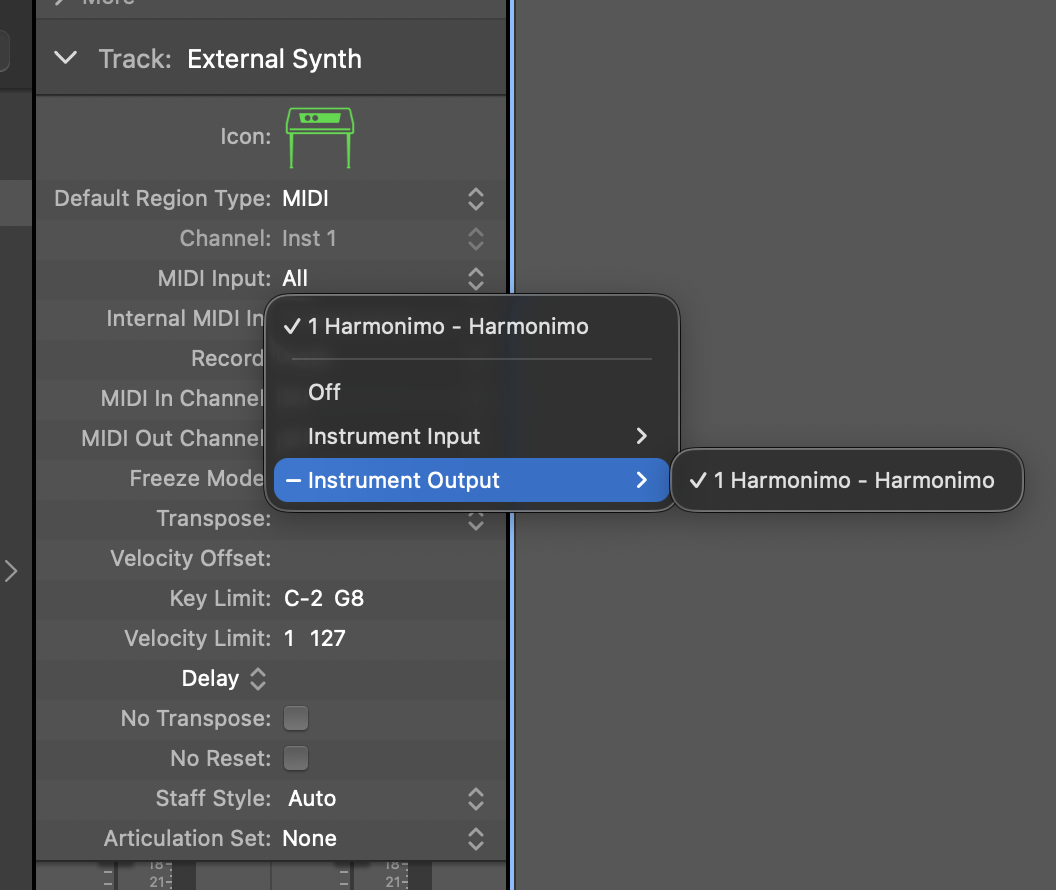
In the receiving instrument track's inspector, open the Internal MIDI In menu. Choose Instrument Output, then select the Harmonimo instrument output.
Open the receiving track's Internal MIDI In menu from the track inspector.Choose Harmonimo from Instrument Output so the synth track listens to Harmonimo's generated MIDI.
Other DAWs
The names change, but the idea is the same. Put Harmonimo on one track, put your sound source on another track, then set the sound source track's MIDI input or MIDI source to Harmonimo's output. Arm or monitor the sound source track so incoming notes can pass through.
If your DAW cannot route MIDI directly from one plug-in track to another, use Harmonimo Standalone instead. Send Harmonimo's MIDI output to a virtual MIDI bus or hardware MIDI port, then choose that same bus or port as the input on the instrument track. The standalone routing answer below walks through that setup inline.
Use Harmonimo's MIDI Out setting when you want one combined output, chord only, melody only, or separate chord and melody channels for different sounds.
Use this route when Harmonimo is running as the standalone app and another track, app, or synth should make the sound. Harmonimo sends MIDI; the receiving instrument turns those notes into audio.
A virtual MIDI bus is just a cable inside your computer. Harmonimo sends notes to the bus, and your DAW, instrument app, or hardware path listens to that same bus.
1. Create or choose a MIDI destination
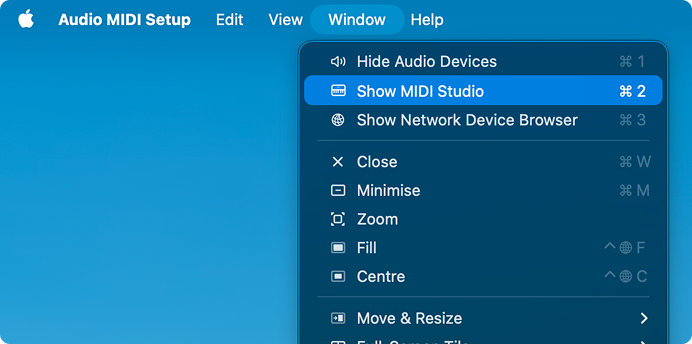
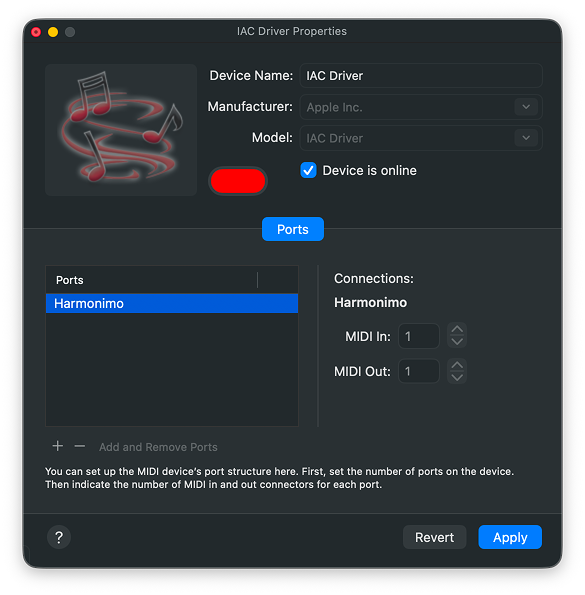
On macOS, open Audio MIDI Setup, choose Window > Show MIDI Studio, then double-click IAC Driver. Enable the device and name the port clearly so it is easy to find in Harmonimo and your DAW.
Open MIDI Studio from Audio MIDI Setup on macOS.Enable IAC Driver and give the port a clear name.
On Windows, create a virtual MIDI port with a driver such as loopMIDI. If you are sending MIDI to a hardware synth, choose your hardware MIDI output instead of a virtual bus.
2. Send Harmonimo to that destination
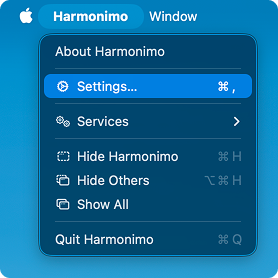
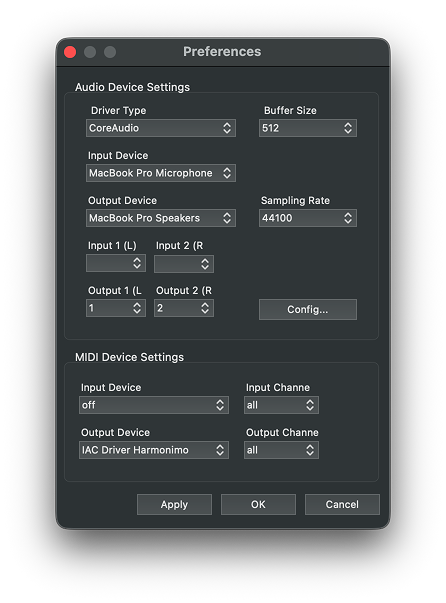
Open Harmonimo Standalone, choose Harmonimo > Settings, set MIDI Output to the virtual bus or hardware MIDI port, then apply the change.
Open Settings from Harmonimo Standalone.Choose the same bus or port that the receiving instrument will listen to.
3. Listen from the instrument track
In your DAW, create or select the instrument track that should make the sound. Set that track's MIDI input or MIDI source to the same bus or port you chose in Harmonimo. Arm or monitor the track, then play in Harmonimo.
For a DAW instrument, the receiving track needs a synth, sampler, or instrument plugin loaded.
For an external synth, make sure the synth is on the expected MIDI channel and its audio output is connected or monitored.
For a second computer, use a MIDI network session only if MIDI needs to travel between devices.
If nothing plays, check the same three points first: Harmonimo's MIDI Output, the receiving track's MIDI Input, and whether that receiving track is armed or monitored.
02
General Questions
Common setup, routing, and support answers.
Install the format your DAW supports. Logic Pro and GarageBand use Audio Unit. Most other DAWs use VST or VST3. The standalone app runs outside your DAW and is useful when you want to play, route MIDI, or sketch without opening a full session.
If you are not sure, install the standard package for your platform and let your DAW scan the format it needs.
First, restart your DAW and rescan your plug-ins from the DAW settings. Then check that the plug-in is installed in the correct system folder for your platform and format.
On macOS, Audio Unit plug-ins usually live in /Library/Audio/Plug-Ins/Components/, while VST3 plug-ins live in /Library/Audio/Plug-Ins/VST3/. On Windows, use the installer path your DAW is scanning.
It depends on the product. Harmonimo generates MIDI chords and melodies, so it usually needs an instrument after it to make sound. Kodotone is a rhythm instrument, so it can play its own drum voices and imported samples, and it can also send MIDI out.
Yes. Use the plugin when you want the Clayworks instrument inside your DAW session. Use the standalone app when you want a separate performance surface, direct MIDI routing, external synth control, or a simpler sketching space.
For standalone routing, use the quickstart answer on this page for the inline virtual MIDI setup.
If macOS says the app or plugin cannot be opened, go to System Settings, then Privacy & Security, and allow the blocked Clayworks item. You may need to open the app once from Finder by right-clicking it and choosing Open.
After approving it, restart your DAW and rescan plug-ins if needed.
Saved content depends on the product. Harmonimo uses saved MIDI mappings and controller presets. Kodotone can save and load user kits with .kodotonekit, and can export kits with embedded samples or linked sample references.
Yes, but keep the sounds and mappings with the project where possible. Harmonimo projects mostly rely on MIDI and plugin state. Kodotone kits may also rely on samples, so portable kit export is the safest way to move a kit to another machine.
If a moved project opens without a sample, check whether the kit used linked file references instead of embedded samples.
MIDI mappings connect a hardware knob, fader, pad, or key to a control inside the product. Enter MIDI Learn, click the control you want to target, then move the control on your MIDI device.
For Harmonimo, make sure it is feeding a software instrument or external synth. Harmonimo generates MIDI, so it will not make a finished instrument sound by itself.
For Kodotone, check audio mute, lane mute and solo states, output routing, your DAW track monitoring, and the selected audio device in standalone. If you only want MIDI, make sure MIDI output is enabled and routed to the right destination.
Clayworks products are built for mainstream AU, VST, and VST3 hosts. Common hosts include Ableton Live, FL Studio, Logic Pro, Cubase, Reaper, Bitwig Studio, Studio One, and other AU/VST-capable DAWs.
Use the format your DAW supports, then check the product page for the exact formats included with that product.
Yes. Clayworks products are designed around real-time controls, MIDI mapping, and hands-on performance. Harmonimo is useful for playable harmony, chord modes, arps, and patterns. Kodotone is useful for live rhythm shaping, lane controls, samples, MIDI clock, and transport output.
Download the latest installer from the downloads page, then install it over your current version. Your projects, presets, mappings, and saved kits should stay separate from the app or plugin files.
If you are mid-project, it is still sensible to keep a backup of important sessions and custom kits before updating.
Please email info@clywrks.com with the product name, version, operating system, DAW, plugin format, and the steps that caused the issue. If the product crashed or closed, collect the logs right away before restarting too much, because some temporary files can be replaced.
Windows logs
Press Windows key + E to open File Explorer.
Click the address bar, paste %LOCALAPPDATA%\Harmonimo, and press Enter. For Kodotone, use %LOCALAPPDATA%\Kodotone.
Copy startup.log if it is there.
Create a folder on your Desktop called Clayworks Logs and paste the file into it.
Click the address bar again, paste %TEMP%, and press Enter.
Look for iPlugGraphicsWin.log. If you do not see it, use the File Explorer search box to search for that exact filename.
Copy iPlugGraphicsWin.log into the same Clayworks Logs folder if you find it.
Right-click the Clayworks Logs folder and choose Send to > Compressed (zipped) folder, then email the zip file to us.
macOS logs
In Finder, choose Go > Go to Folder, paste ~/Library/Application Support/, and press Enter.
Open the Harmonimo or Kodotone folder if it exists, then copy startup.log if you see it.
Create a folder on your Desktop called Clayworks Logs and paste the file into it.
In Finder, choose Go > Go to Folder again, paste ~/Library/Logs/DiagnosticReports/, and press Enter.
Look for a recent crash file that mentions Harmonimo, Kodotone, or the DAW that crashed. Files may end in .crash or .ips.
Copy any recent matching crash report into the Clayworks Logs folder.
Right-click the folder and choose Compress "Clayworks Logs", then email the zip file to us.
If one of the files is missing, that is okay. Please still send the files you do have, and mention which ones were missing.
Send the product name, version, operating system, DAW, plugin format, and a short description of what you expected to happen and what happened instead.
Screenshots, short screen recordings, steps to reproduce, crash logs, and example projects are all helpful. You can contact Clayworks at info@clywrks.com.
03
Deeper Reading
Detailed product and workflow pages live here.
If you want the deeper, text-heavier pages that explain Harmonimo in more detail, start here:
Harmonimo plugin details for the full product overview, compatibility, pricing, and feature summary
Kodotone includes standalone, AUv2, and VST3 plugin builds for supported desktop targets. Install the format your DAW scans, then restart or rescan your DAW if the plugin does not appear immediately.
macOS Use the standalone app when you want Kodotone outside a DAW. Use AUv2 for Logic Pro and GarageBand, and VST3 for DAWs that scan VST3 plug-ins.
Windows Run the installer and make sure your DAW is scanning the VST3 folder used during installation.
Start with the lane rack. Choose or import sounds, set the global tempo or sync to your DAW, then use each lane's density, placement, swing, accent, ghost, and humanisation controls to steer the rhythm instead of drawing every hit by hand.
If the pattern is close but not right, adjust one lane at a time. Kodotone is built around shaping the feel while the idea is still moving.
Yes. Kodotone can import samples through the file picker or drag and drop. WAV and MP3 are supported on supported desktop builds, and the lane sample slot shows a waveform preview once the file is loaded.
When moving projects between computers, use portable kit export if you want samples carried with the kit instead of relying on linked file paths.
02
General Questions
Common Kodotone setup, routing, and support answers.
Kodotone is built for mainstream AUv2 and VST3-capable DAWs, including Ableton Live, Logic Pro, Cubase, Reaper, Bitwig Studio, Studio One, and similar hosts.
Use AUv2 in Logic Pro and GarageBand. Use VST3 in DAWs that scan VST3 plug-ins.
Check the lane mute and solo states, the selected sound or sample for the lane, the plugin or standalone audio output, your DAW track monitoring, and whether the transport is running when Kodotone is synced to host playback.
If you are using Kodotone only for MIDI output, make sure MIDI output is enabled and routed to the destination instrument.
Yes. Kodotone can send MIDI sequencer output, including notes, MIDI clock, and start or stop transport messages into the rest of your setup.
Use this when another device, app, or plugin should follow Kodotone's rhythmic output.
Kodotone can save and load user kits with .kodotonekit. It can also export portable kits with embedded samples or linked sample references.
Use embedded samples when you need to move the kit to another computer without losing the sounds.
Email info@clywrks.com with the Kodotone version, operating system, DAW, plugin format, and the steps that caused the issue.
If samples are involved, mention whether they are WAV or MP3, and whether the kit uses embedded samples or linked file references.